A kiosk is a tablet or computer in your library where readers help themselves. They can borrow and return books, search the catalog, see their loans and renew them. Staff don't need to be there.
Kiosks are part of the Bibliotheca plan. On the Library Lover plan, you can use a kiosk by turning on Family Kiosk in your lending rules.
Before you start
- You need a device with a web browser, and a staff login for an administrator of the library.
- A USB or Bluetooth barcode scanner beside the device makes borrowing much quicker. Readers can type instead, but it's slower.
- Set up the kiosk on the device that readers will use, because activating it only affects that browser.
Activate the device
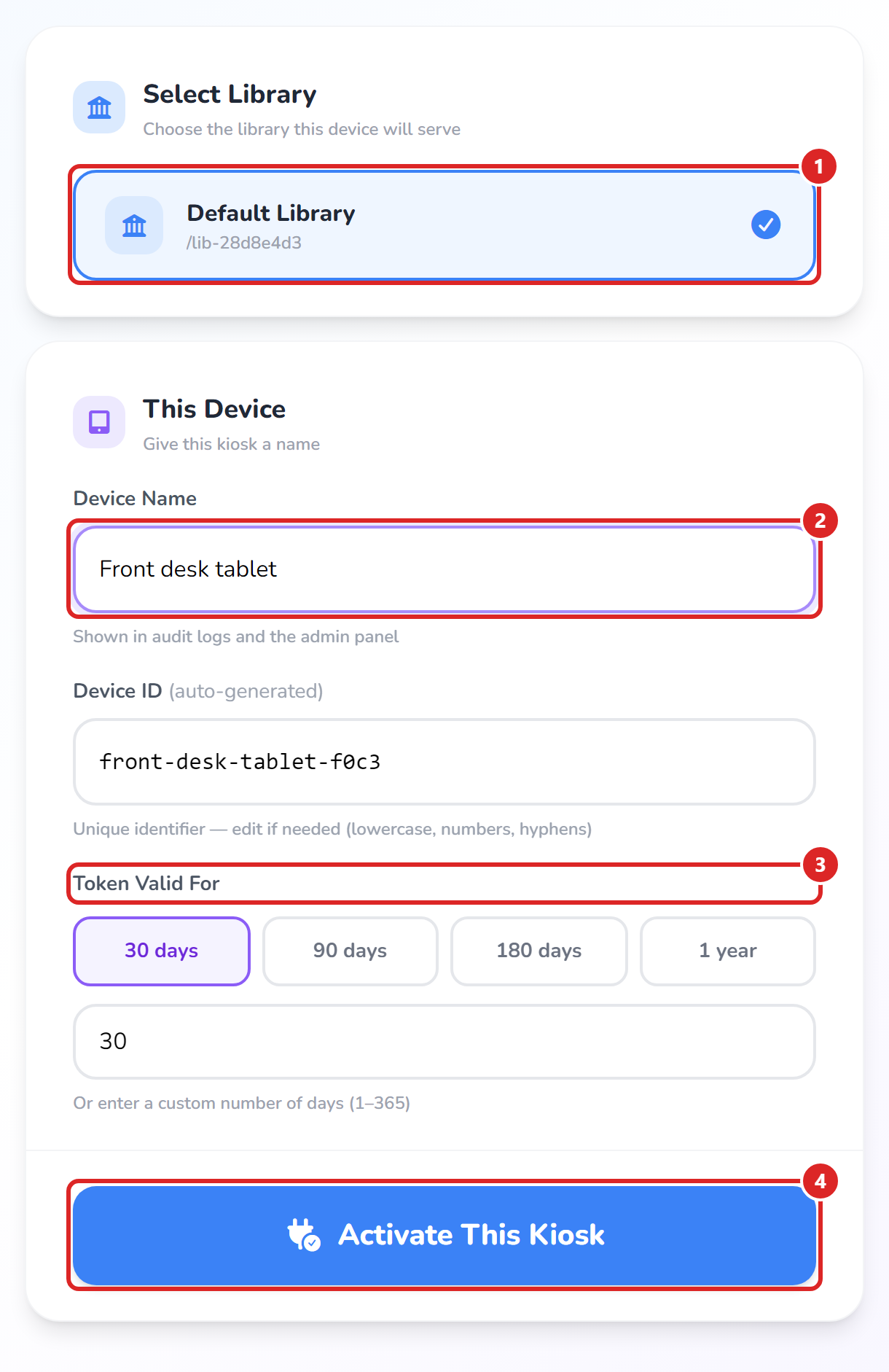
On the device, open your library website and go to /kiosk/setup. Sign in with your staff login if you're asked to. Then follow these steps. The numbers match the picture below.
- Select your library.
- Enter a Device Name, such as "Front desk tablet". This name appears in your audit log. The Device ID is filled in for you.
- Under Token Valid For, choose how long this device stays activated: 30 days, 90 days, 180 days or 1 year. You can also type any number of days up to 365.
- Select Activate This Kiosk.
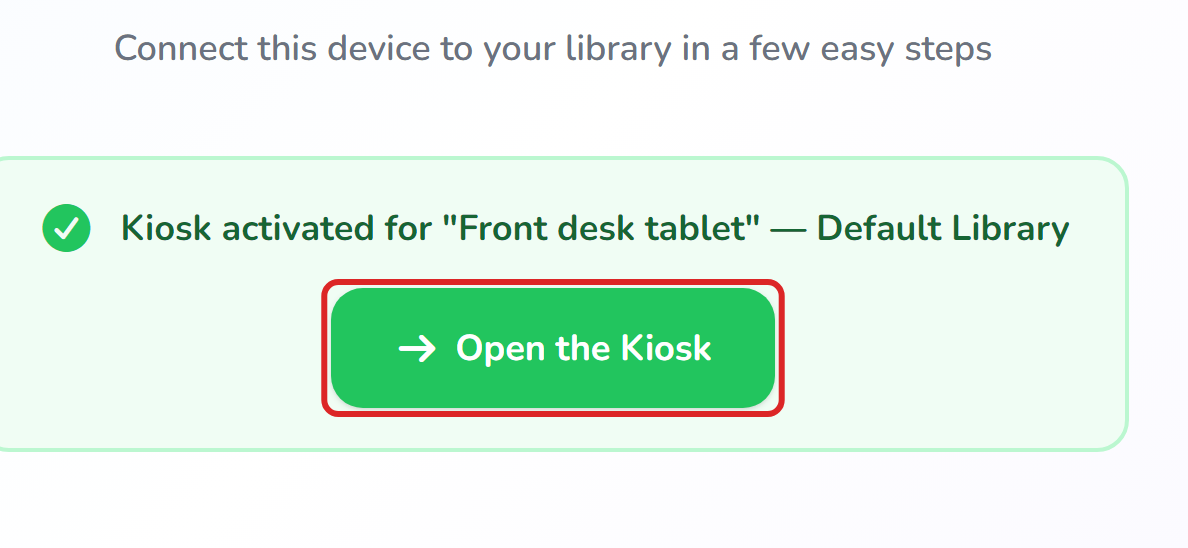
When you see the green message, select Open the Kiosk.
Before you leave the device, sign out of your staff account so that readers can't reach your staff pages. The kiosk keeps working after you sign out.
How readers use it
Readers start on this screen. They scan their library card, or type their name.
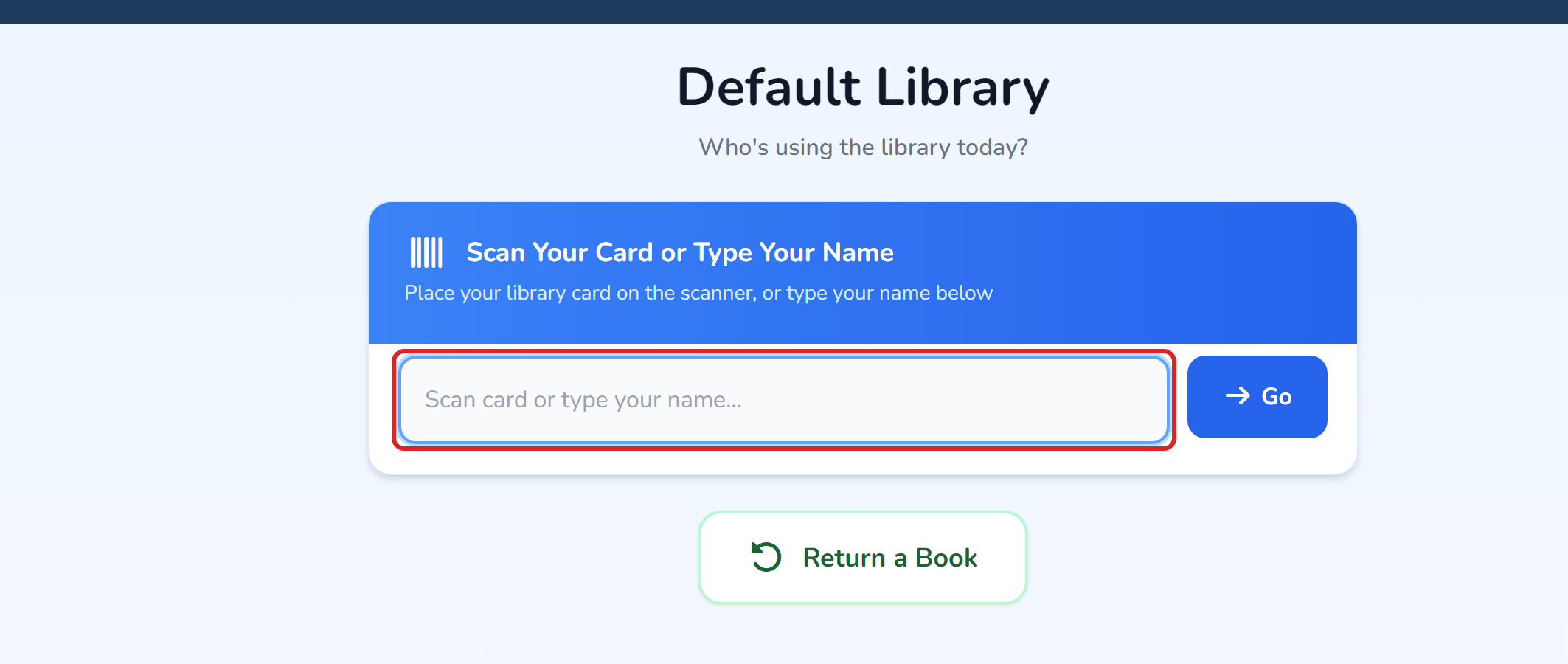
To give a reader a card, open their page from Readers and select Print to print their QR code. With Family Kiosk on, the screen shows a list of names to tap instead.
Return a Book works without signing in, so readers can drop a book off quickly.
Readers can also collect reserved books here. They scan the held book and borrow it as normal, and the reservation updates by itself.
Every loan on the kiosk follows your lending rules, so a reader who's over the limit is stopped here too.
If something goes wrong
- "This kiosk is not configured yet" The activation has run out, the browser's cookies were cleared, or the page was opened in a different browser. Activate the device again from /kiosk/setup. Nothing is lost. To avoid this, use a long token and don't use private browsing.
- "Admin Sign-In Required" Sign in with a staff account on the device.
- "No libraries found." Your account isn't an administrator of any library. Ask the library owner to add you.
- "You are not an administrator of the selected library." Sign in with an account that manages this library.
- "Please select a library." or "Device name is required." Fill in the missing part of the form.
- "Token validity must be between 1 and 365 days" Enter a number of days in that range.
- "Something went wrong" on the kiosk screen: refresh the page and try again. If it keeps happening, contact us through Support and include the Request ID shown on the screen.
- The kiosk doesn't open after activation. Check your plan under My Subscription. On Library Lover, also check that Family Kiosk is turned on.
- A reader can't sign in. Check that they're in your Readers list, and print a new card if theirs doesn't scan.
- The scanner does nothing. Tap the box on the screen first, then scan again. Most scanners act like a keyboard, so test yours by scanning into a text app.