Each book has a page that holds its details, its age range, every copy you own and everyone who has borrowed it. It's the place to look when you want to know how many copies are in, or where one went.
To open it, select Books in the left menu and select the book's title.
What's on the page
The numbers match the picture below.
- Edit changes the book's details, tags and age range.
- Print Barcode prints the book's barcode, so that you can stick one on a book that doesn't have its own.
- Video Discussion schedules an online discussion about this book.
- Age Recommendation shows the age range and the reason for it.
- Inventory shows how many copies you own and how many are available to lend.
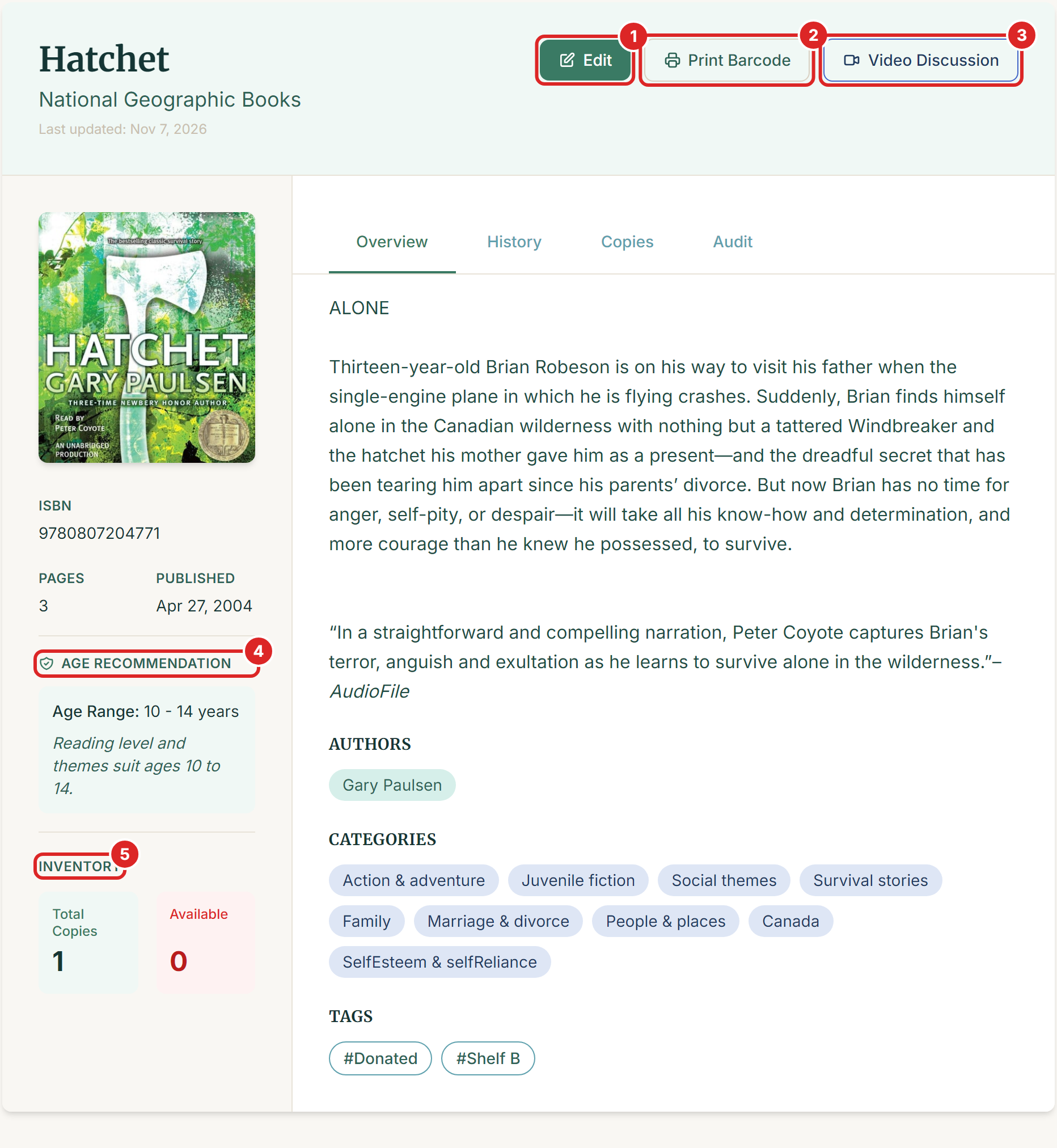
The Overview tab shows the description, authors, categories and tags. Select Back to Books at the top to return to your list.
See who borrowed a book
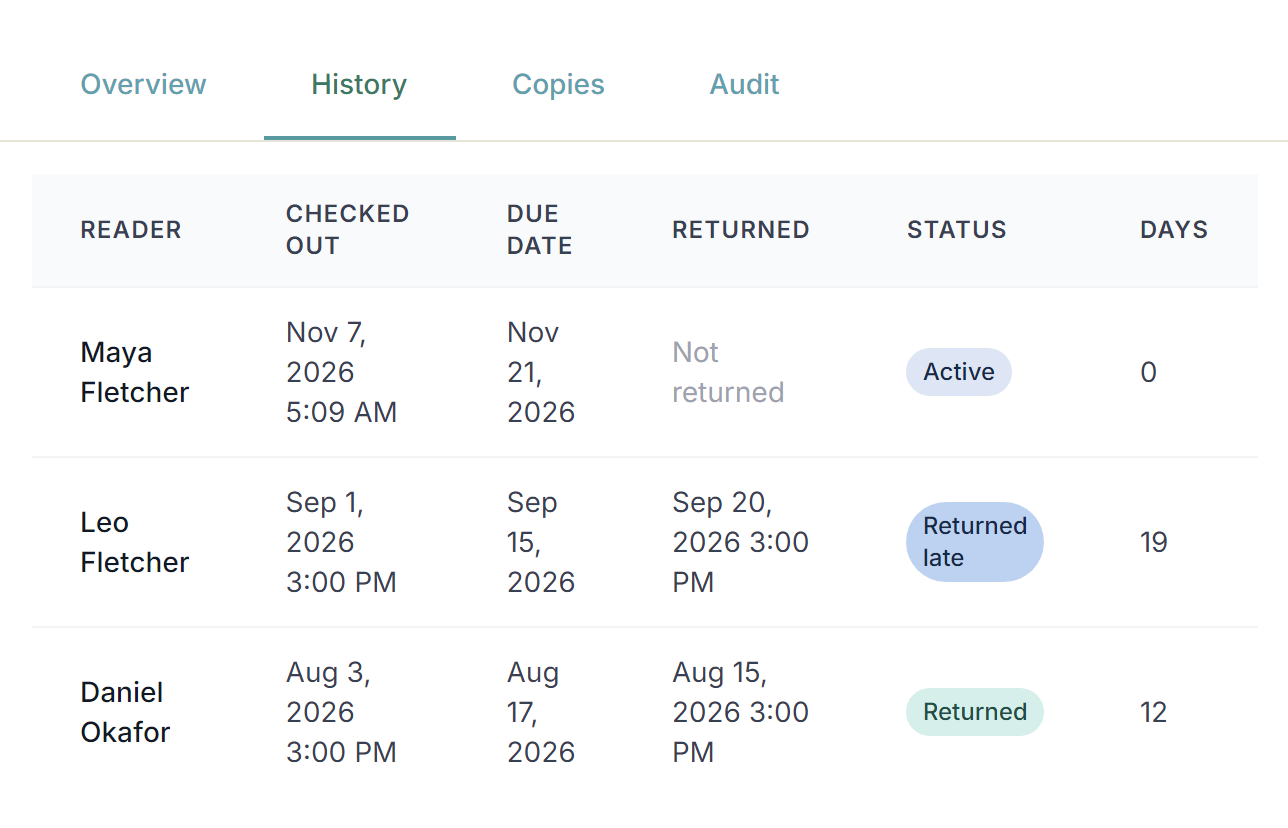
The History tab lists every loan of this book, across all its copies. It shows the reader, the dates and the status, and Days shows how long they kept it. A book still out says Not returned.
Manage copies
The Copies tab has one row for each physical copy, with its status and the date you added it. These are the statuses you'll see:
- Available is on the shelf and can be lent.
- CheckedOut is out with a reader.
- Reserved is held for a reservation.
- Lost has been marked as lost.
- InRepair and Damaged are off the shelf, and can't be lent.
The actions are on the right. The numbers match the picture below.
- Change status moves a copy between available, in repair and damaged.
- Mark lost marks a copy as lost. If a reader has it, the loan closes as Lost. When a lost copy turns up, the button becomes Mark found.
- The bin deletes the copy.
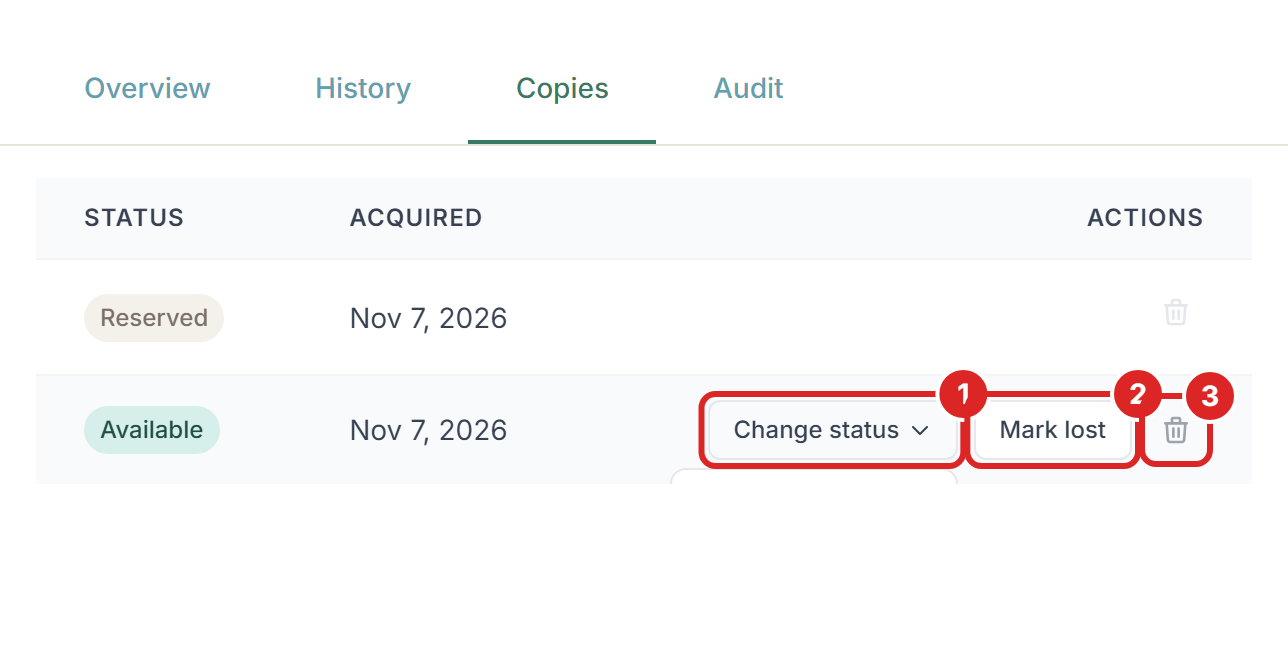
A copy that's checked out or reserved has fewer actions, because its loan or reservation controls it. Return the book or cancel the reservation first.
To add another copy, add the book again with the same ISBN. See the article on adding a book.
A copy that has been lent can't be deleted, so its history stays complete. If it's gone for good, use Mark lost or Change status to mark it as damaged.
Edit a book
Select Edit, change what you need, then select Update Book. You return to the Books list.
Here you can fix anything the book database got wrong: title, authors, categories, tags, ISBN, publisher, cover and description. To add a tag, type it and press Enter.
The description may contain codes such as <p> or <br>. They came with the book's data and they control the line breaks, so you can leave them.
Age ranges
Most books get an age range by themselves shortly after you add them. It's worked out by AI from the title, description and categories, and the reason is shown beside it. Kiosks and the reservation portal use it to hide books that are too old for a reader.
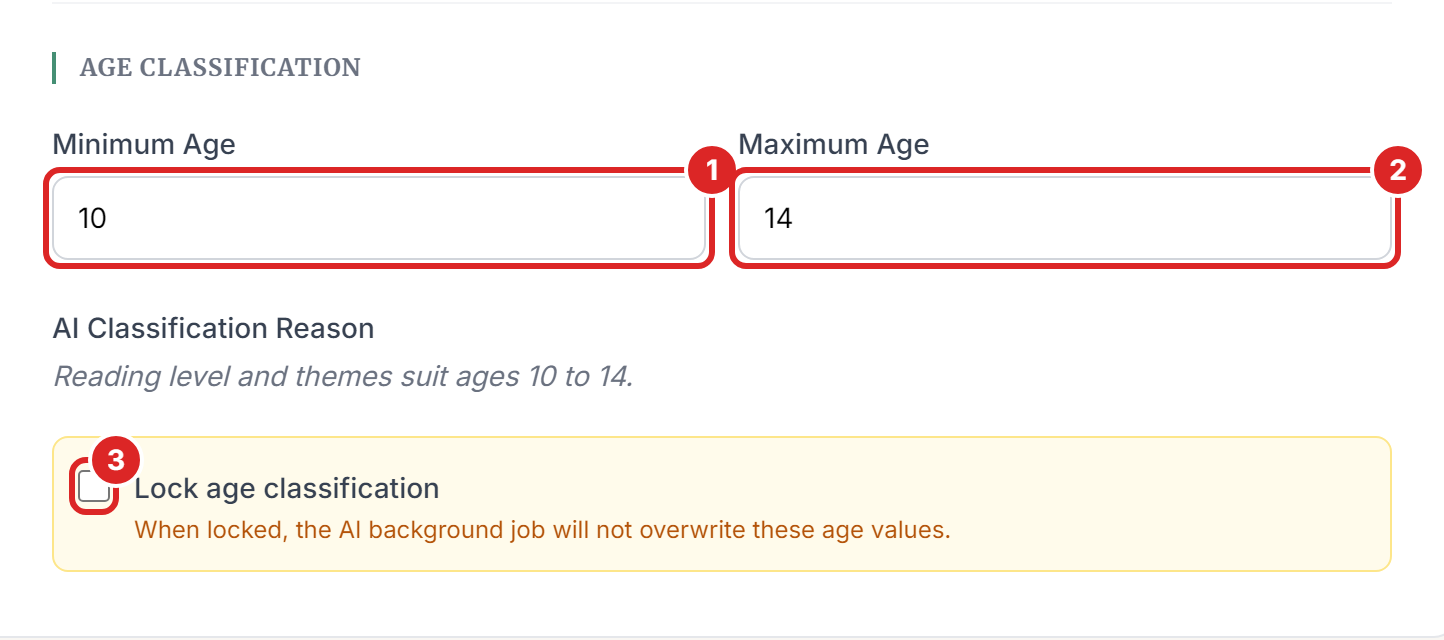
If you disagree with a range, change it on the Edit page. The numbers match the picture below.
- Enter the Minimum Age.
- Enter the Maximum Age.
- Tick Lock age classification, so that the AI doesn't change your numbers later.
Delete a book
Delete a book from the Books list, with the Delete action on its row. To delete several, tick them and select Delete Selected. A book can only be deleted if none of its copies have ever been lent.
If something goes wrong
- "This book cannot be deleted because its copies have loan history. Mark the copies as Lost or Damaged instead." The history is kept on purpose. Open the Copies tab and mark each copy.
- "Cannot delete a copy that has loan history. Mark it as Lost or Damaged instead." The same applies to a single copy.
- "Cannot delete a reserved copy." Cancel the reservation first.
- "Cannot change the status of a copy that is checked out or reserved." Return the book or cancel the reservation, then try again.
- "This copy is lost. Use Mark found to put it back on the shelf." A lost copy can't use Change status.
- "This copy is held for a reservation. Release the hold before marking it lost." Open the reservation and cancel it, then mark the copy as lost.
- "Another book in this library already has ISBN ..." You changed the ISBN to one that's already in use. Search for that ISBN, because this may be the same book entered twice.
- "Minimum age must be between 0 and 99" or "Maximum age must be between 0 and 99" Enter a whole number in that range.
- "ISBN is required unless the book doesn't have an ISBN" Enter the ISBN, or tick the box for a book without one.
- There's no age range. It may not be ready yet, so check again later. You can also enter one yourself on the Edit page.
- Available says 0, but the book is on the shelf. It was probably never returned in the system. Check the History tab, then use Return a Book.