Each reader has their own page that shows who they are, what they have out and what they've borrowed before. Start here when someone asks what they still have, or when you need to send them something.
To open it, select Readers in the left menu and select the reader's name. The search box finds people by name, email or ID.
The top of the page
The numbers match the picture below.
- The line under the name shows when the reader joined, how many books they have out, and a red Overdue label if any of those books are late.
- Edit changes the reader's details.
- Print prints their library card, with the library name, their name and their QR code. The reader scans this to sign in at a kiosk.
- Send Reservation Portal Link emails them the link they use to reserve books online. The button stays there, so you can send it again whenever someone loses the email.
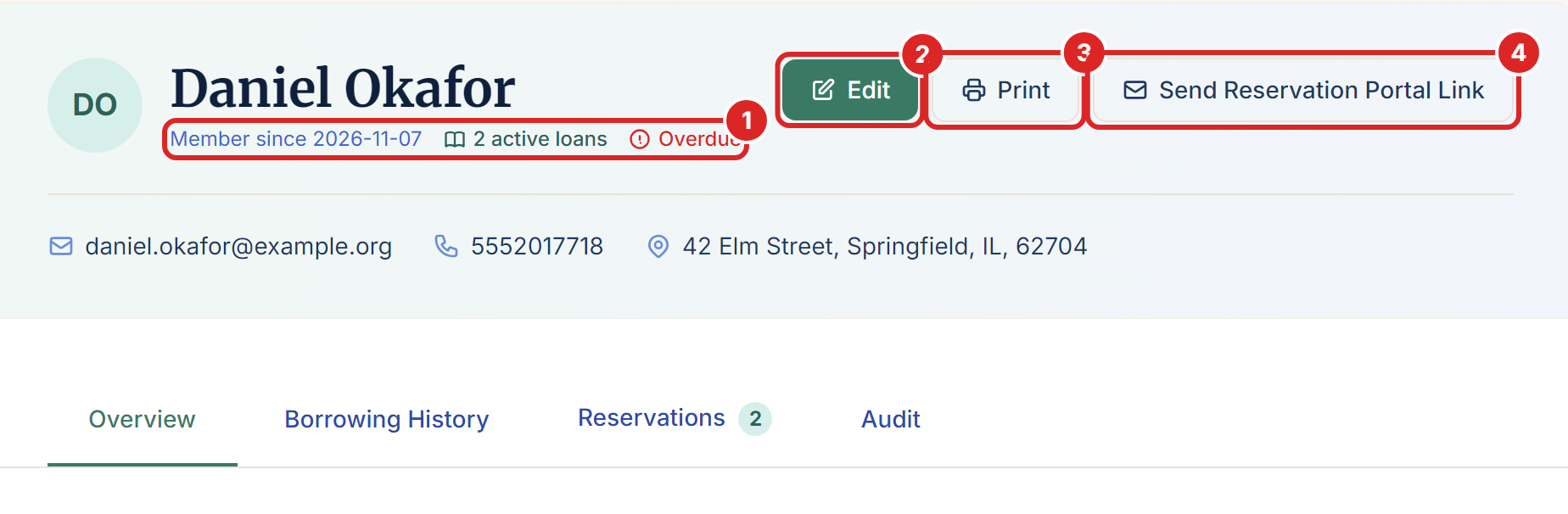
Their email, phone number and address appear below the name. For a child, you'll also see the guardian's email, and that's where notifications go.
Overview
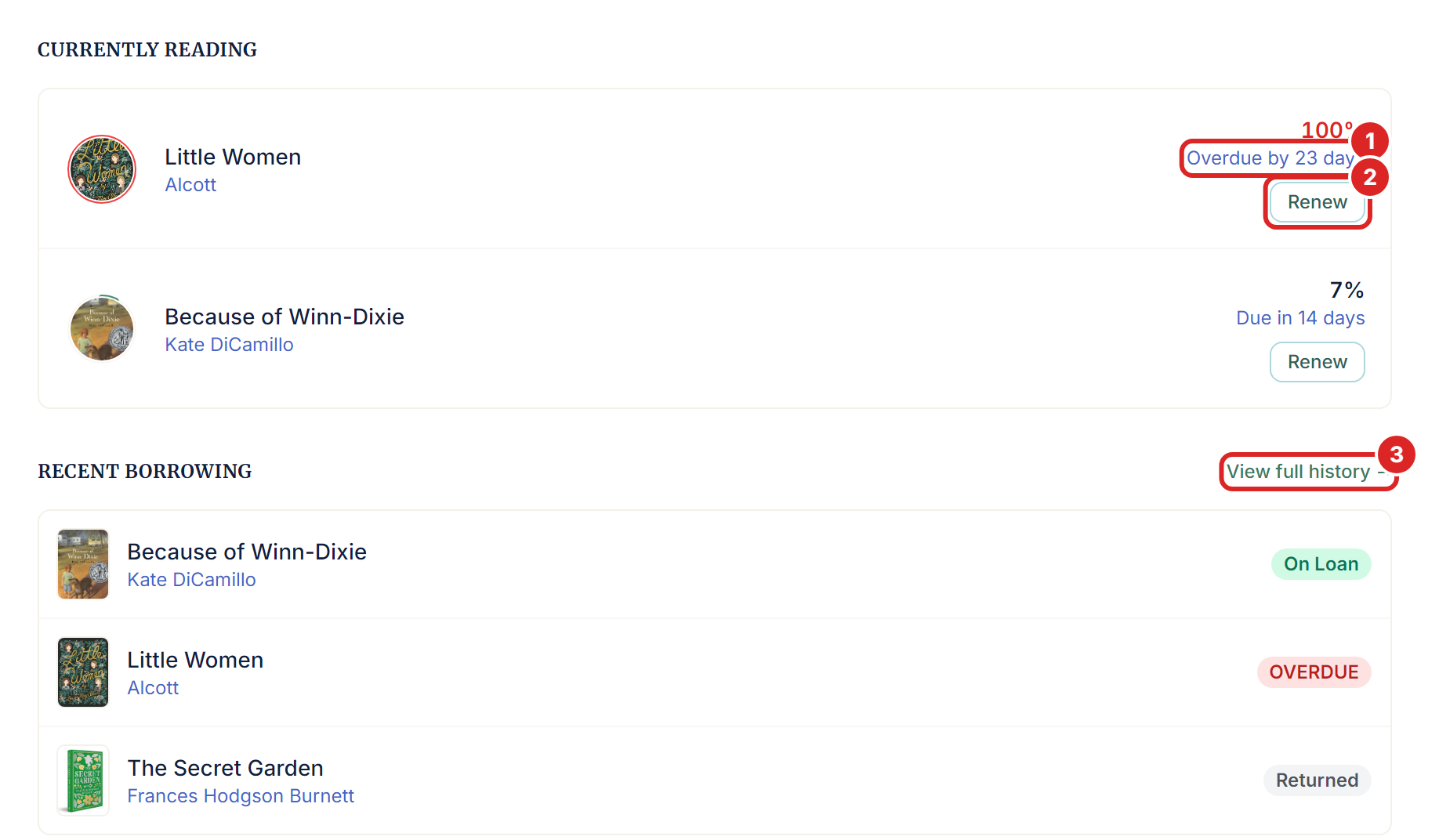
The Overview tab shows what the reader has right now.
- Under Currently Reading, each book shows when it's due, or how late it is. The percentage shows how much of the loan period has gone.
- Select Renew to extend a loan by one loan period. The button turns grey when the loan has used all its renewals.
- Recent Borrowing lists the latest books. Select View full history to open the next tab.
To take a book back, use Return a Book or the Circulations page. The reader page has no return button.
Borrowing History
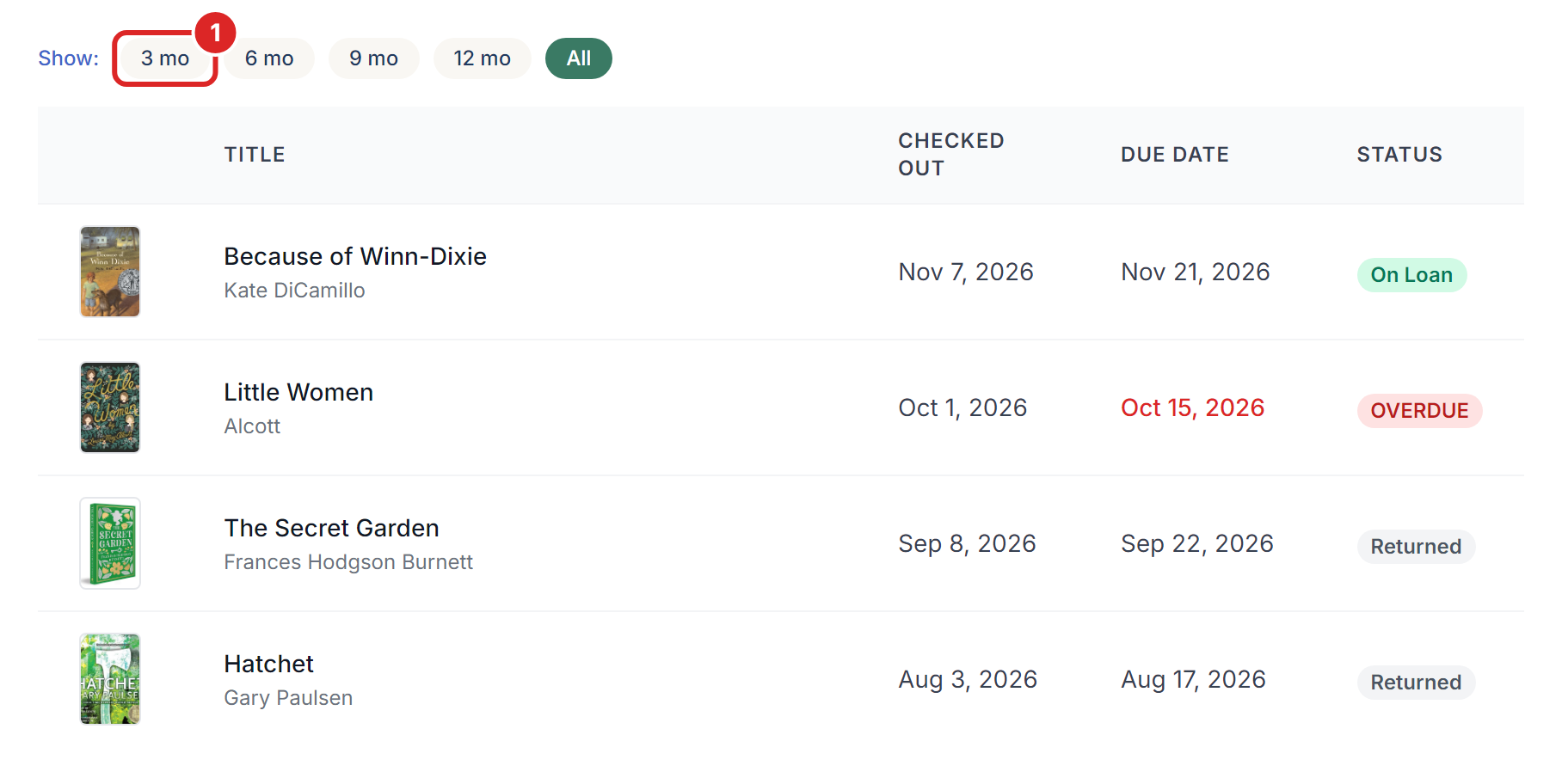
This tab lists every book the reader has borrowed, with the dates and the status of each loan. Use the buttons at the top (number 1 in the picture) to show the last 3, 6, 9 or 12 months, or All.
Reservations
This tab lists the reader's reservations. The number on the tab shows how many they have. Select View to open one.

Audit
This tab is for checking the record itself. It shows the reader's ID and Public ID, and who created and last changed the record, with the dates.
Extra tabs for children in schools and homeschools
In a Private School or Homeschool library, a child's page shows more about their reading. You'll see these for readers marked as a minor.
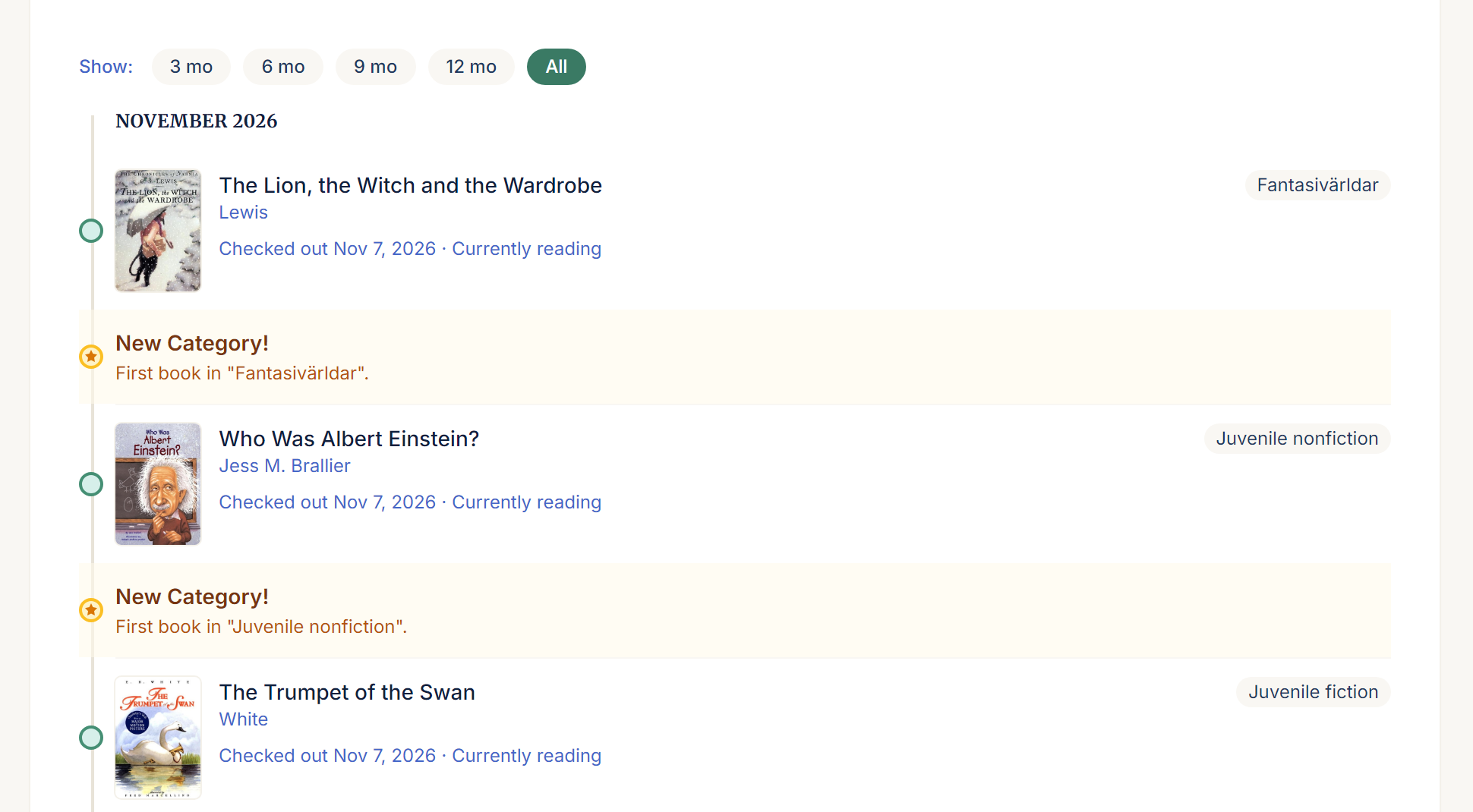
- Reading Journey is a new tab, with a timeline of what they've read.
- What they're into lately shows the kinds of books they've been choosing.
- Reading Level vs. Age compares the age range of their recent books with their own age. It needs a date of birth for the comparison, and your plan needs to include age classification.
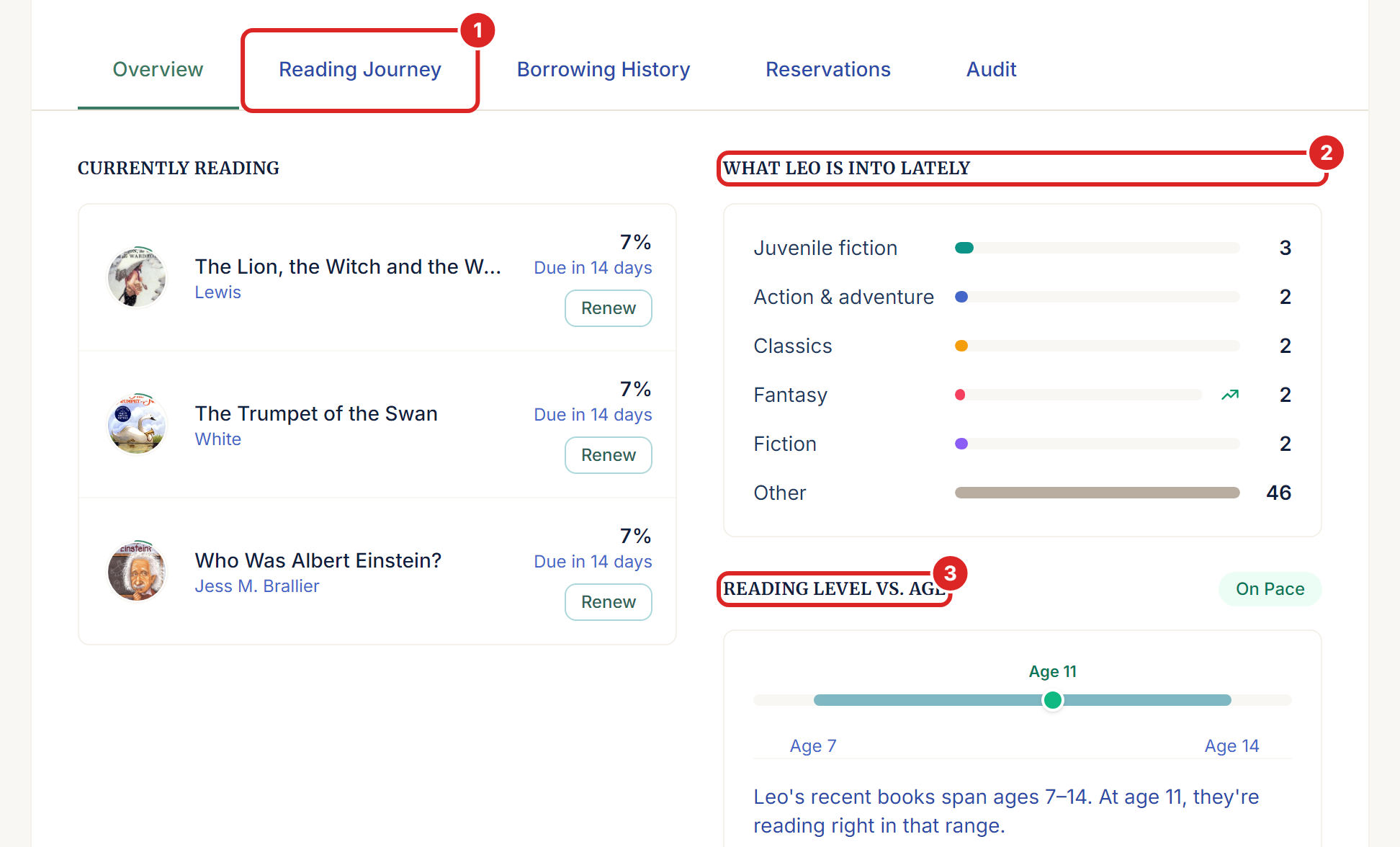
The Reading Journey groups books by month and points out milestones, such as the first book in a new category.
Deleting a reader
You delete a reader from the Readers list, not from their page. A reader can only be deleted when they have no books out and no open reservations.
After that, the reader's page, card and portal link are gone. Their past loans stay on each book's History tab, shown as Deleted reader.
If something goes wrong
"This reader can't be deleted while they have books checked out and open reservations." You return to the reader's page, with links to what's still open. Return the books, cancel or finish the reservations, then try again. The wording changes to match what's blocking the delete.

"Could not send portal link — reader has no email or public ID." Select Edit and check the reader's email address.
"A reader with this email already exists." You're changing the email to one that another reader in this library uses. Search the Readers list, because the same person may be registered twice.
The reader didn't get the portal link. Check the address on their page, and ask them to look in their spam folder. For a child, the link goes to the guardian.
There's no Print button. The reader has no QR code on record. Contact us through Support.
The Renew button is grey. The loan has used all its renewals. Hold your pointer over the button to see the reason.
Renew shows an error. The reader may have an overdue book, or someone else may be waiting for this one. See the article on renewals, overdue books and lost books.
The Reading Journey tab is missing. It only appears for a reader marked as a minor, in a library set up as a Private School or Homeschool.