There are two ways to add a lot of books. Use Bulk Add when the books are in front of you and you can scan them one after another. Use Bulk Import when you already have a list of ISBNs in a spreadsheet.
Scan a stack of books with Bulk Add
Select Books in the left menu, select the arrow beside Add Book, then select Add Many. The first time you open the page, a short tour shows you around. You can close it with the X.
- If every book in this stack belongs together, select Edit beside Session Tags and add a tag, such as a shelf name or a donor. Each book you save in this session gets the tag.
- Scan a barcode, or type an ISBN or title in the search box and press Enter. The book appears in the Scan Log. Then scan the next one. Each new scan saves the book before it, and that book's Saved column changes from Pending to Saved.
- When you reach the last book, select Save on its row. This book stays Pending until you do. You then return to the Books list.
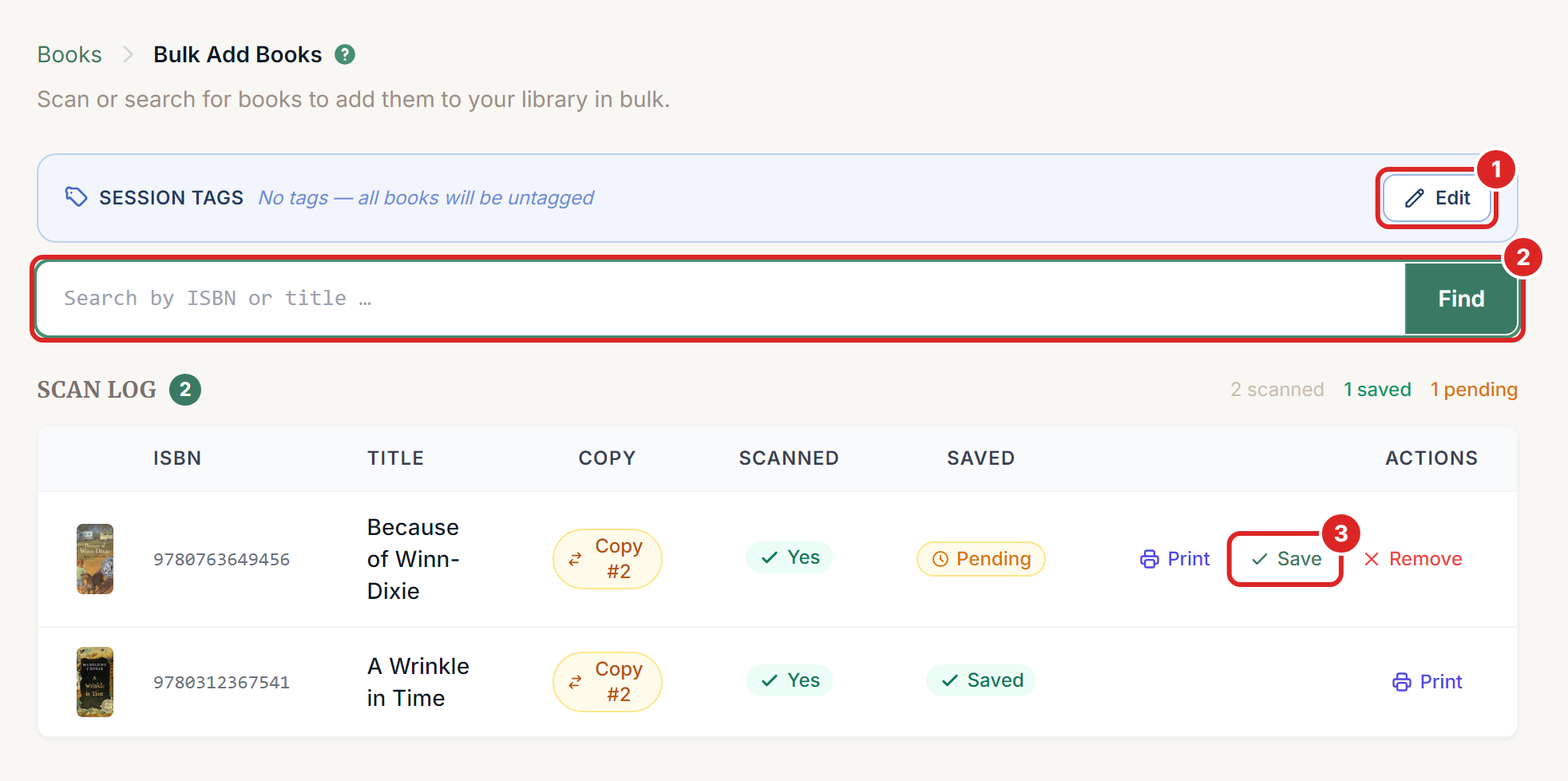
The Copy column tells you what you're adding. New title means this book isn't in your library yet. Copy #2 means you already have one and this adds another.
Select Remove on a pending row if you scanned the wrong book. Once a row says Saved, the book is in your library, so remove or fix it from the Books list instead. Select Print on a row to print the book's barcode.
Import a list of ISBNs with Bulk Import
Select Admin Tools in the left menu, then select Bulk Import Books.
Prepare a file with one ISBN per row in the first column, and save it as a .csv file. A heading in the first row is fine.
ISBN
9780312367541
9780763649456
9781416971719
- Select Choose File and pick your file.
- Select Start Import.
The import runs in the background, so you can leave the page. Refresh the page to see how it's going under Recent Imports. The status moves from Pending to Processing to Completed.
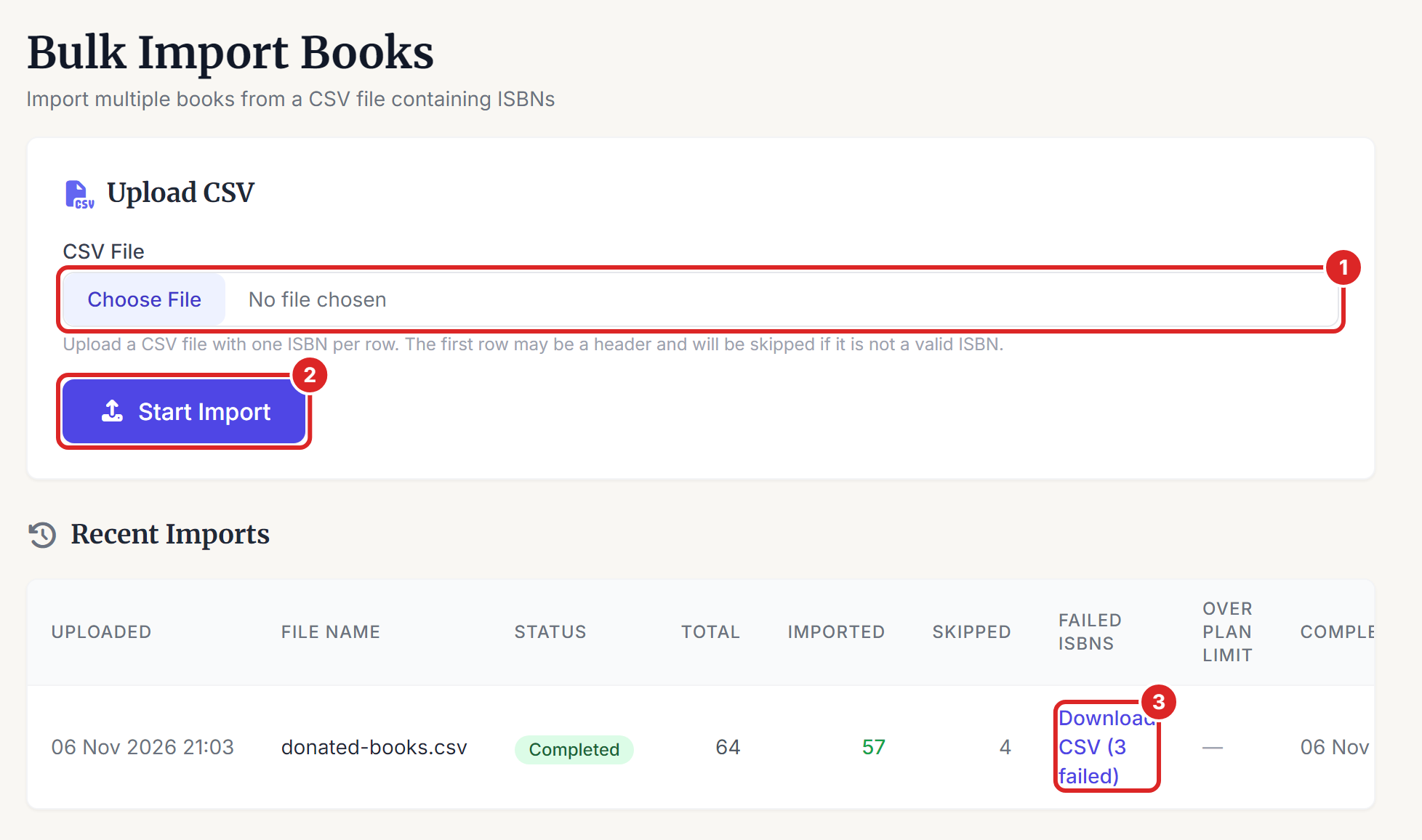
Here is how to read the results:
- Imported books were added to your library.
- Skipped books were already in your library. An import never adds a second copy, so use Bulk Add for extra copies.
- Failed ISBNs couldn't be found. Select Download CSV (number 3 in the picture) to get the list, then add these books by hand.
- Over Plan Limit books didn't fit in your plan. Select Download CSV in that column to get them, upgrade under My Subscription, then import that list again.
Imported books use the details from the book database as they are, so it's worth looking over the Books list when the job finishes. Imports don't add tags.
If something goes wrong
- "Book not found" Nothing matched that ISBN or title. Try the title, or add the book by hand from Add Book. See the article on adding a book.
- "Cannot save: Title and ISBN are required" The book has no title or ISBN to save. Search for it again, or add it by hand.
- "Error saving book: You have reached the maximum number of books allowed by your subscription plan." You'll need to upgrade your plan under My Subscription before adding more books.
- "Please select a CSV file." Select Choose File before Start Import.
- "Only .csv files are allowed." In Excel or Google Sheets, save or download the sheet as a CSV file, then upload that.
- Every ISBN failed. Open the file and check that the ISBNs are in the first column. Spreadsheets can also turn long numbers into something like 9.78E+12. Format that column as text before you save.
- The status says Failed. The job stopped partway. Upload the same file again. Books that were already added are skipped, so nothing is duplicated.
- The status stays Pending for a long time. Refresh the page after a few minutes. If it still hasn't started, contact us through Support.